
How to share all your Completion Certificates with one link
You can share every Completion Certificate you've earned with a single public link, perfect for your portfolio, resume, or LinkedIn profile.
First, open your certificates page, or select the Certificates option in your account menu. This page lists all the certificates you've claimed. If a certificate is missing, see Where do I find my Completion Certificates?
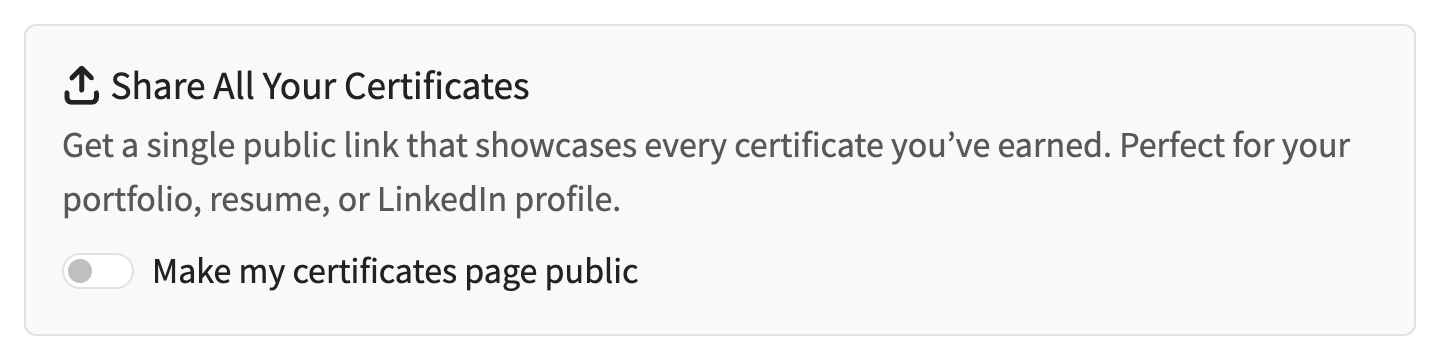
In the Share All Your Certificates section, switch on the Make my certificates page public toggle:
This creates a public link to your certificates page. Click Copy to copy the link, or Preview your public page to see exactly what visitors will see:
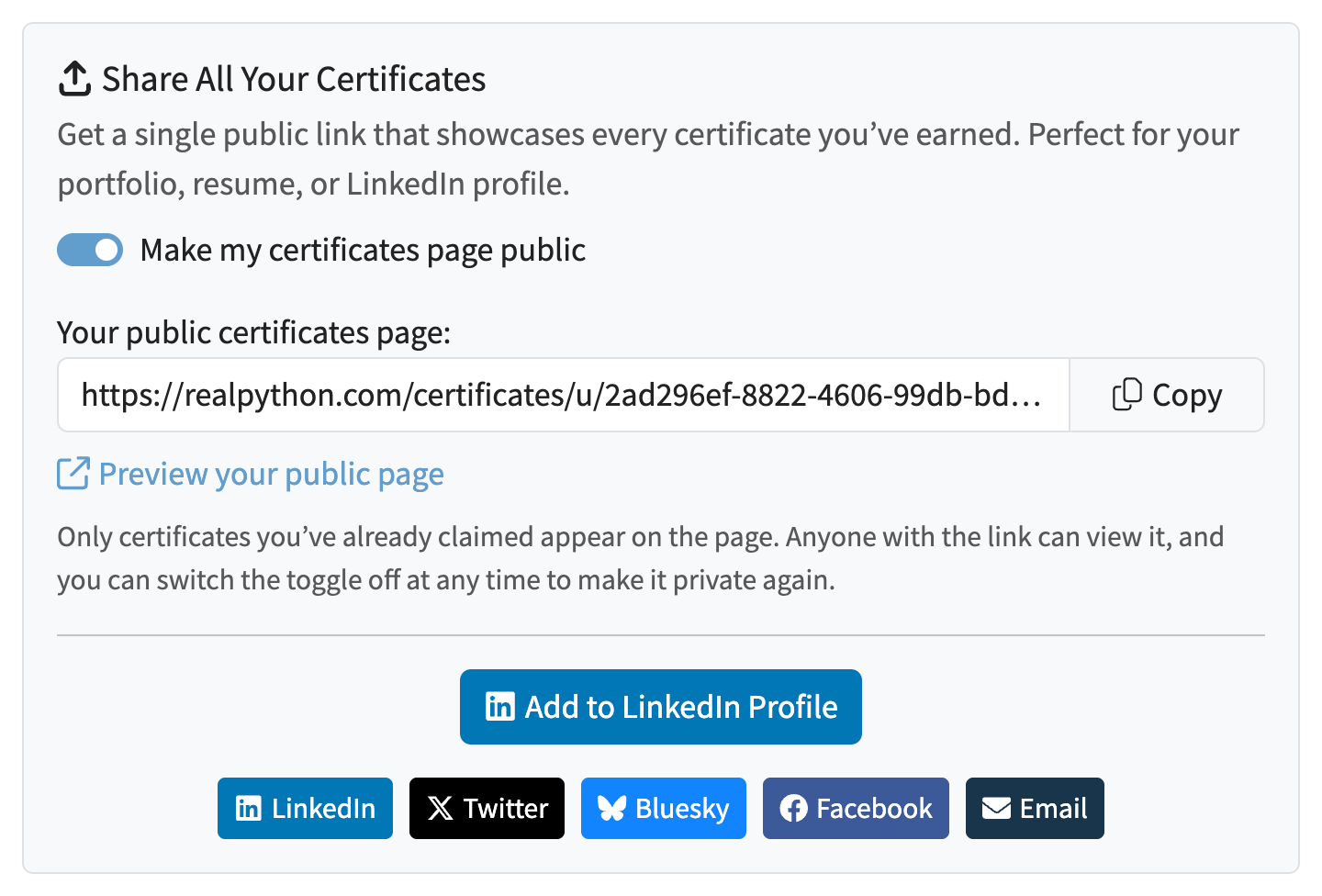
Paste the link wherever you like, for example on your resume or in your portfolio. Anyone who opens the link can view your certificates and confirm that they're genuine, no Real Python account needed.
You can also share the page directly from this section. Click Add to LinkedIn Profile to add it to the Licenses & certifications section of your LinkedIn profile, or use the sharing buttons for LinkedIn, Twitter, Bluesky, Facebook, and Email to start a post (or an email) that links to your page.
Your certificates page is private by default, and you can switch the toggle off at any time to make it private again.
Looking to share just one certificate instead? See How to share your Completion Certificate on social media. You can also add individual certificates to LinkedIn or download them as PDFs.