
How do I add my Completion Certificate to LinkedIn?
You can add any of your Completion Certificates to the Licenses & certifications section of your LinkedIn profile with a single click.
First, open the certificate page for the course. If you're not sure where to find it, see Where do I find my Completion Certificates?
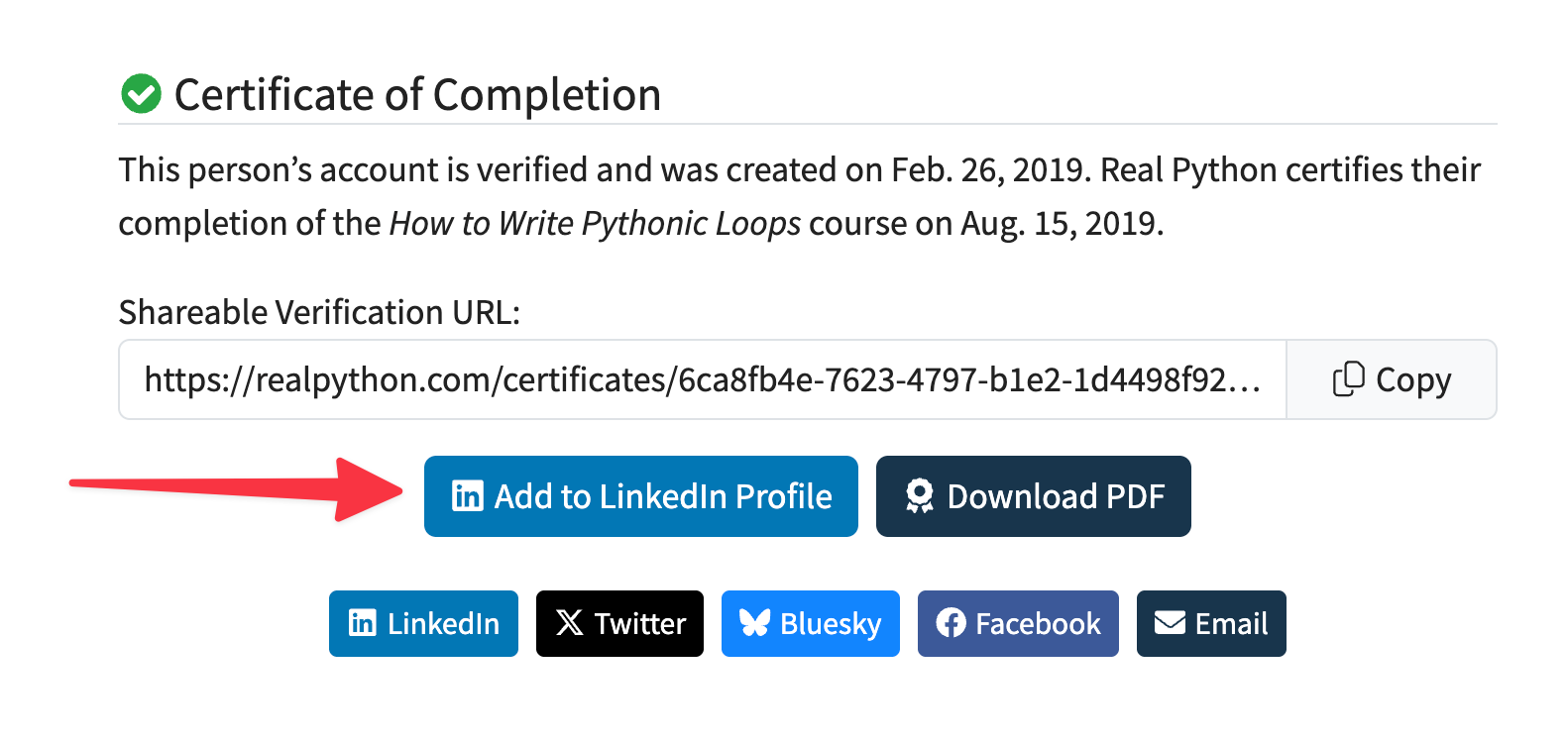
On the certificate page, click the Add to LinkedIn Profile button below the shareable verification URL:
This takes you to LinkedIn's Add license or certification dialog. Sign in to LinkedIn if you're not signed in already. The certificate details are filled in for you: the course title, Real Python as the issuing organization, the issue date, and the credential ID and URL that anyone can use to verify your certificate:
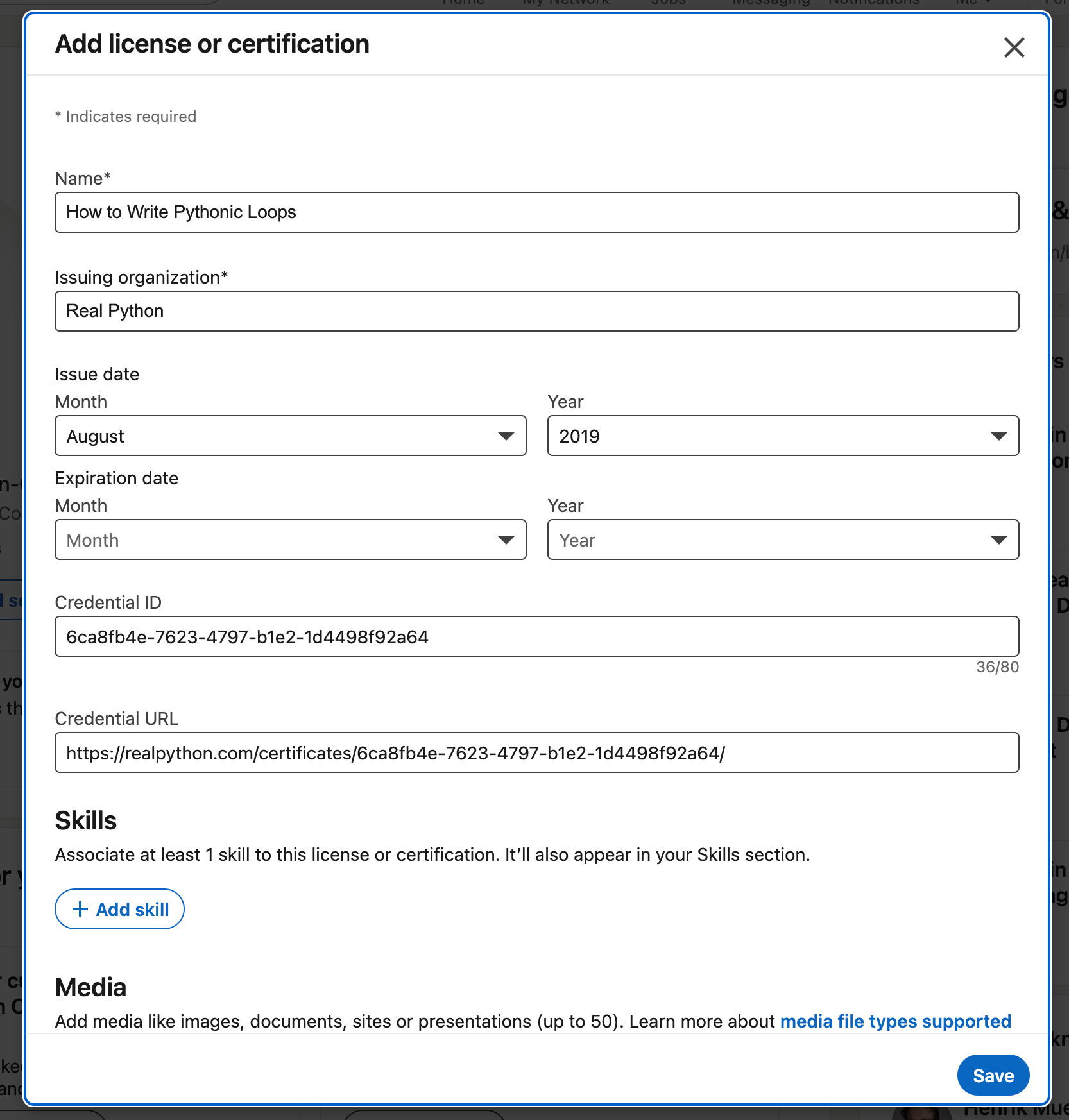
Review the details, add one or more related skills under Skills, and click Save. The certificate now appears in the Licenses & certifications section of your profile.
If you'd rather share the certificate as a post or attach it as a file, you can use the social sharing buttons on the certificate page instead, or download the certificate as a PDF.