
Understanding test results and error messages
When you run your code in a coding exercise, it's checked against a set of automated tests. This article explains how to read the results and what the most common messages mean.
Reading the test results
Each test in the sidebar has a short, descriptive name explaining what it checks. Before your first run, every test shows as pending. After a run, each test turns green (passed) or red (failed), and a progress bar summarizes how many tests you're passing.
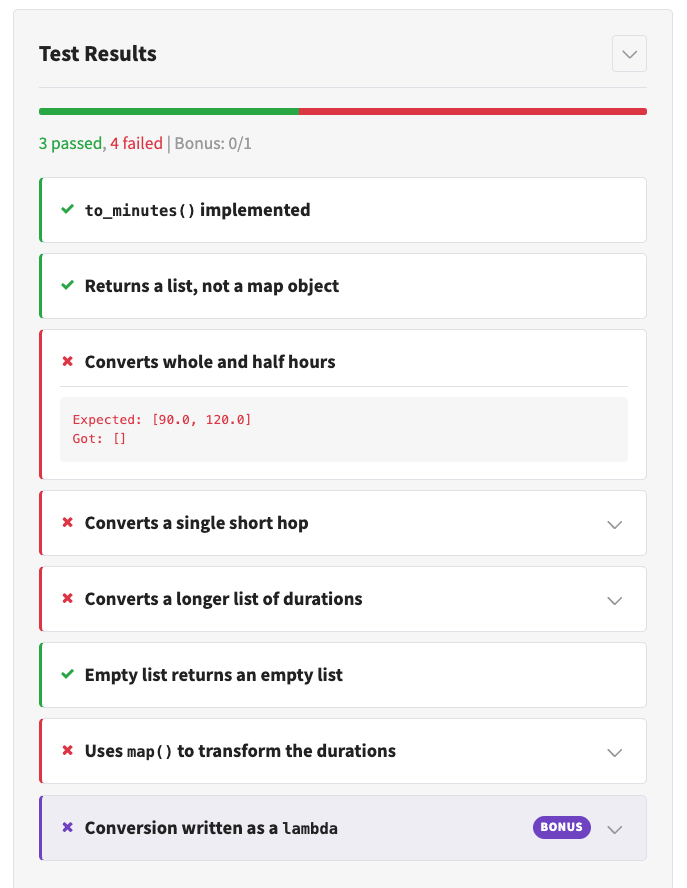
Click a failed test to expand its details. Depending on the test, you'll see what input was used, what result was expected, what your code actually produced, and sometimes a hint pointing you toward the fix.
Tests marked with a Bonus badge are optional stretch goals. They never block completion, so don't worry if they're red while you're working on the required tests.
Common messages
- "... is not implemented yet": The starter code contains
...placeholders that you haven't replaced with your own code yet. Fill in the placeholder that the test refers to and run again. - An assertion failure: Your code ran, but produced a different result than expected. Compare the expected and actual values in the test details to see where they differ.
- A traceback: Your code raised an error while running. Read the traceback from the bottom up: the last line names the error, and the lines above show where in your code it happened.
- A syntax error: Python couldn't run your code at all, so no tests could be checked. Fix the line reported in the error message and run again.
Tips for debugging
- Fix one failing test at a time, starting from the top. Tests are ordered so that earlier ones check the basics that later ones build on.
- Run the tests often. There's no penalty for failed attempts, and small steps make it easier to see what each change did.
- Reread the Instructions tab. Many failed tests come down to a detail in the task description, like an exact return value or function name.